Android Email
Setup
This easy guide will help you set up your Android device to receive and send email using your proper account settings.
Step 1. On your Android phone or tablet, open the Gmail app .
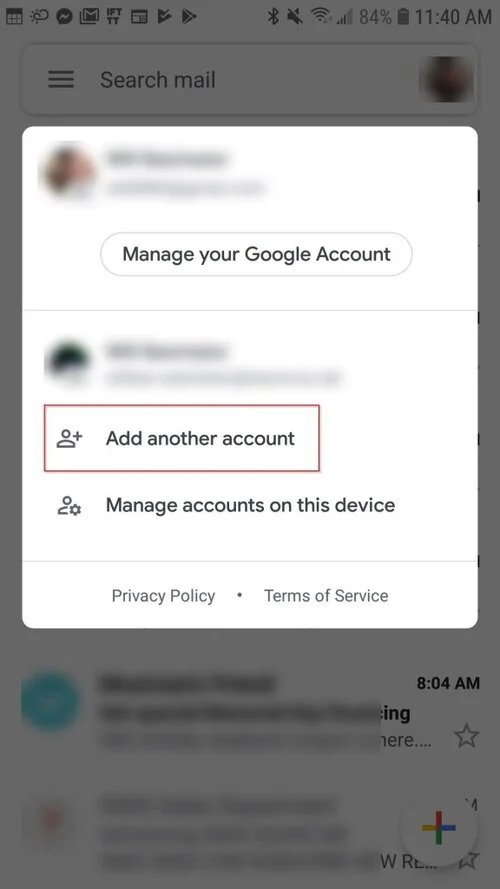
Step 2. In the top right, tap your profile picture.
Step 3. Tap Add another account.
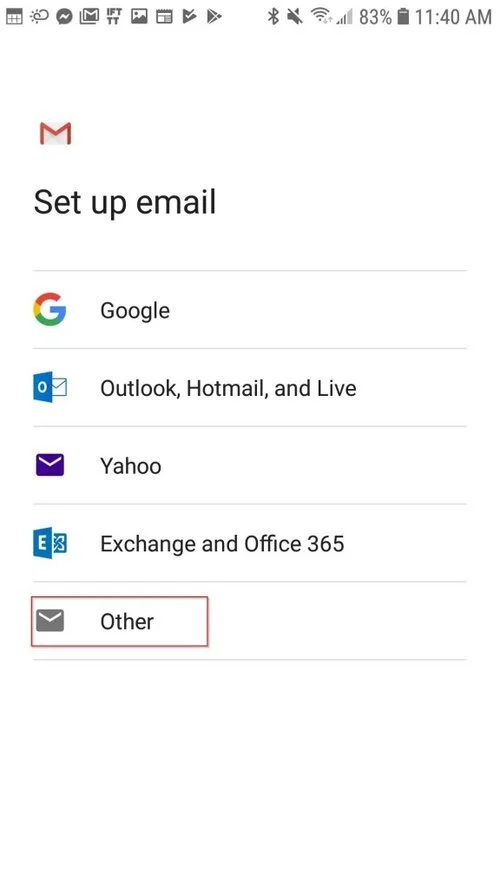
Step 4. Select Other
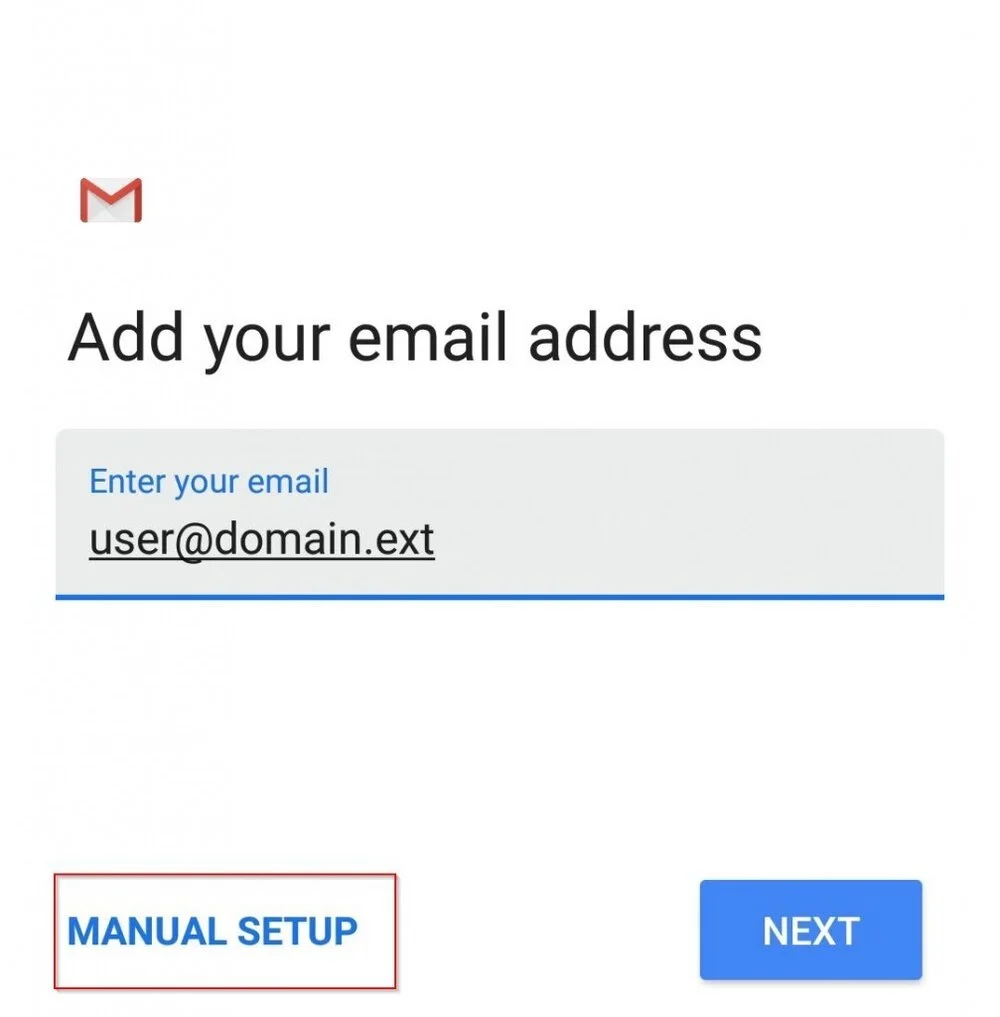
Step 5. Enter your full email address (ex: myemail@lingonetworks.net)
Select Manual setup
Step 6. Select Personal (IMAP)
Step 7. Populate the necessary fields accordingly:
Username: Enter your full email address here (ex: myemail@lingonetworks.net)
Password: Enter the password for your email account
IMAP server: Enter imap.lingonetworks.net
Tap Next to continue
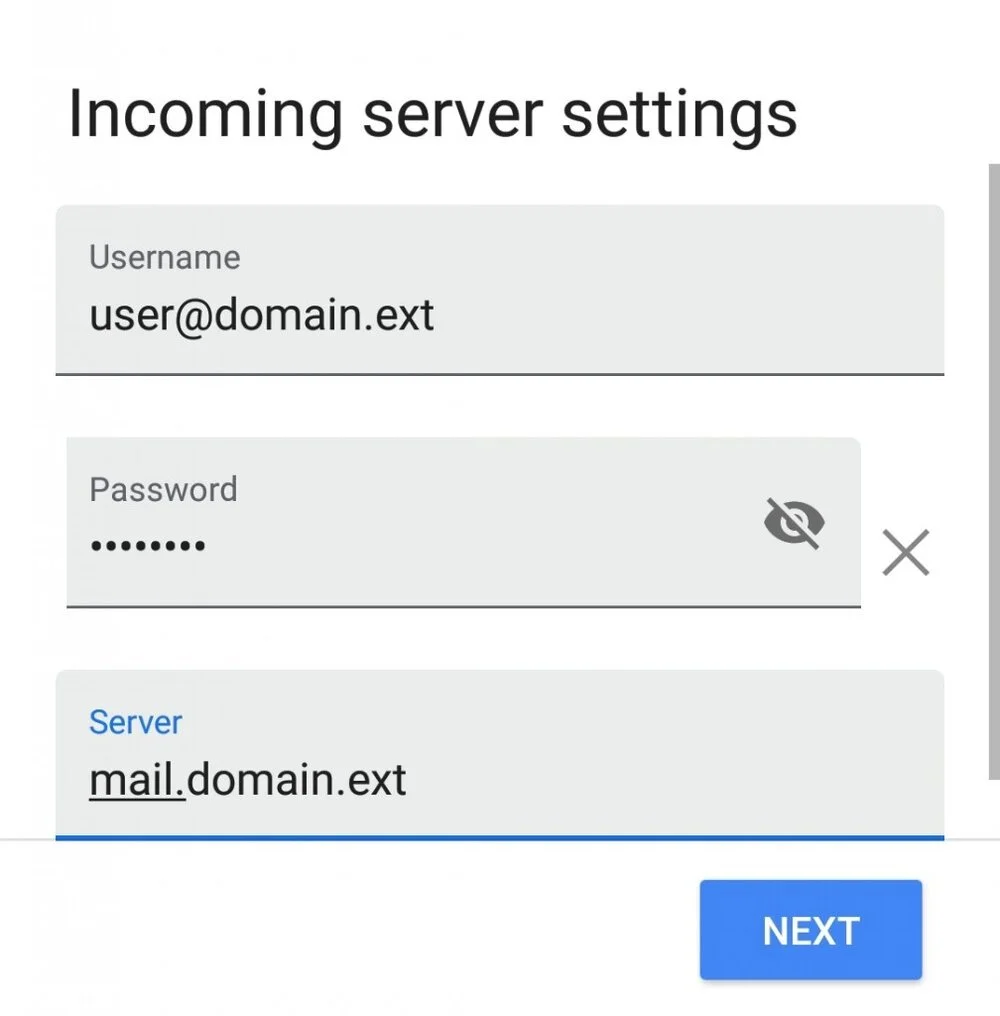
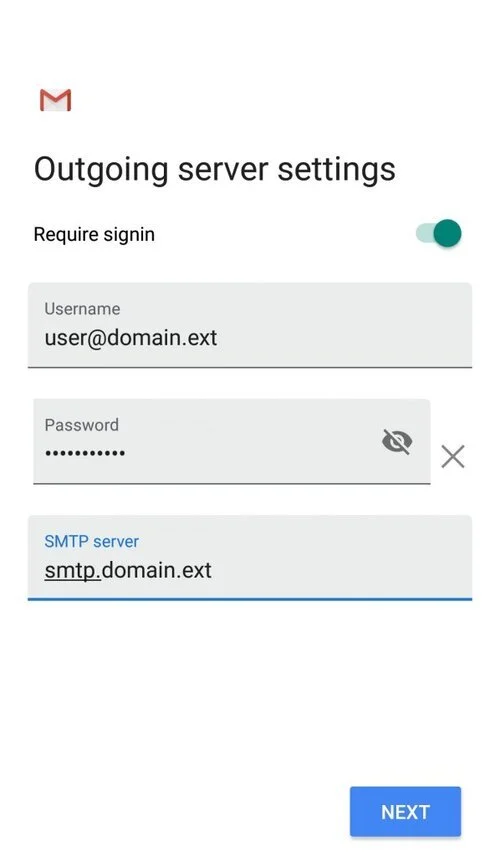
Step 8. Populate the necessary fields accordingly:
Username: Enter your full email address here (ex: myemail@lingonetworks.net)
Password: Enter the password for your email account
IMAP server: Enter smtp.lingonetworks.net
Tap Next to continue